
Integrate with WooCommerce
The impact.com plugin on WooCommerce makes it easy to recruit, track, and manage publishers that want to promote your online store. Our WooCommerce app is a quick plug-and-play solution to integrating impact.com with your website without needing coding knowledge or extensive developer help. Follow this step-by-step guide to learn about the process and integrate.
Integrating with WooCommerce currently requires:
- One (1) Event Type tracking online sales (no recurring subscriptions)
- A store landing page that is hosted by WooCommerce (not externally)
- Orders need to use the standard statuses: completed, pending or processing
- WooCommerce version 4.7 or newer, up to version 10
Check before integrating
Before proceeding with the WooCommerce integration, ensure you have:
- Access to your impact.com account
- Admin access to your WooCommerce store
- Your impact.com account credentials ready
- WooCommerce version 4.7 or newer (up to version 10)
Add impact.com to WooCommerce
This instruction set covers installing the impact.com plugin to your WooCommerce store.
Install impact.com's plugin
-
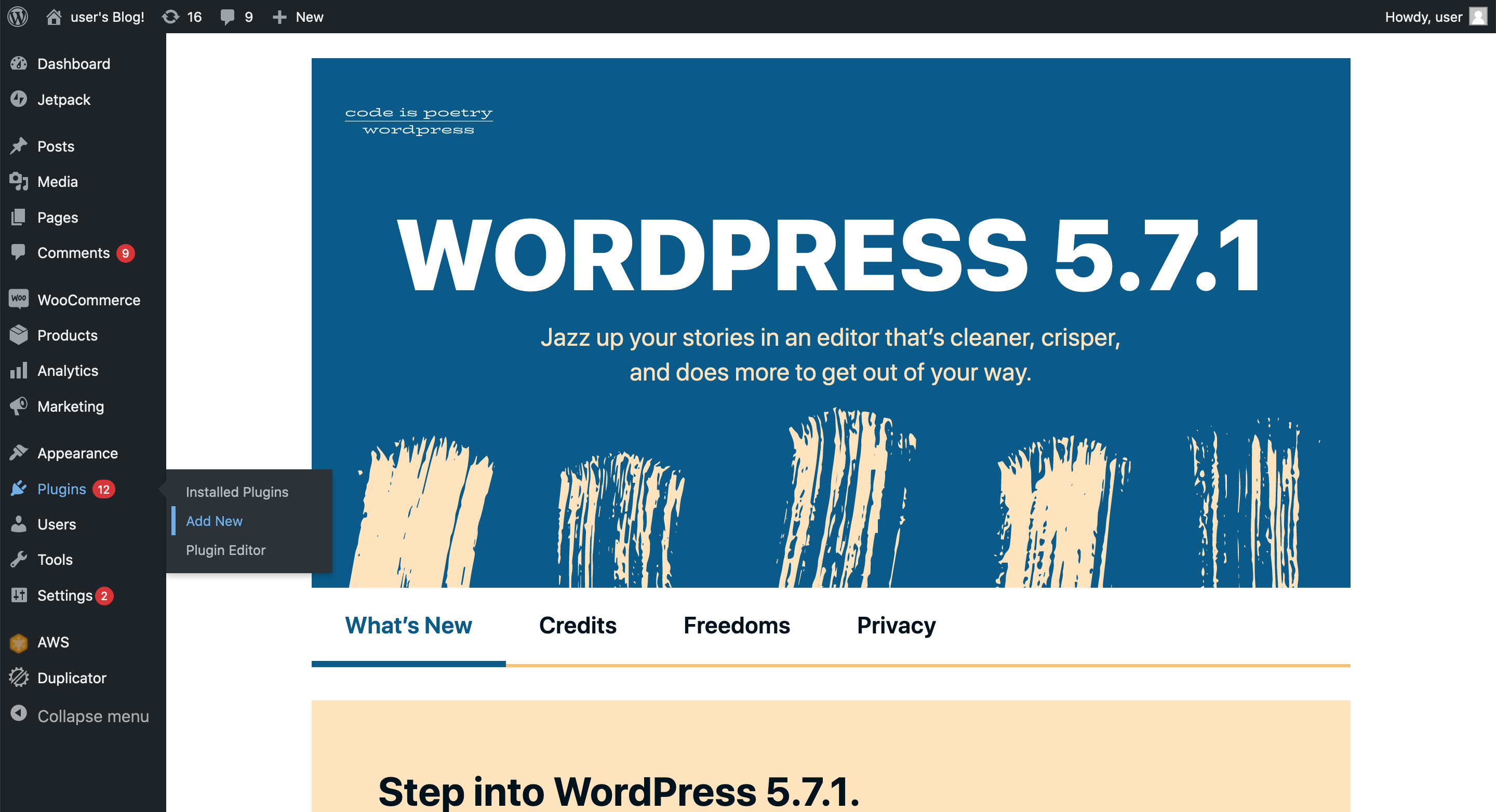
In your WooCommerce dashboard, expand the left navigation menu and select Plugins → Add New.
-
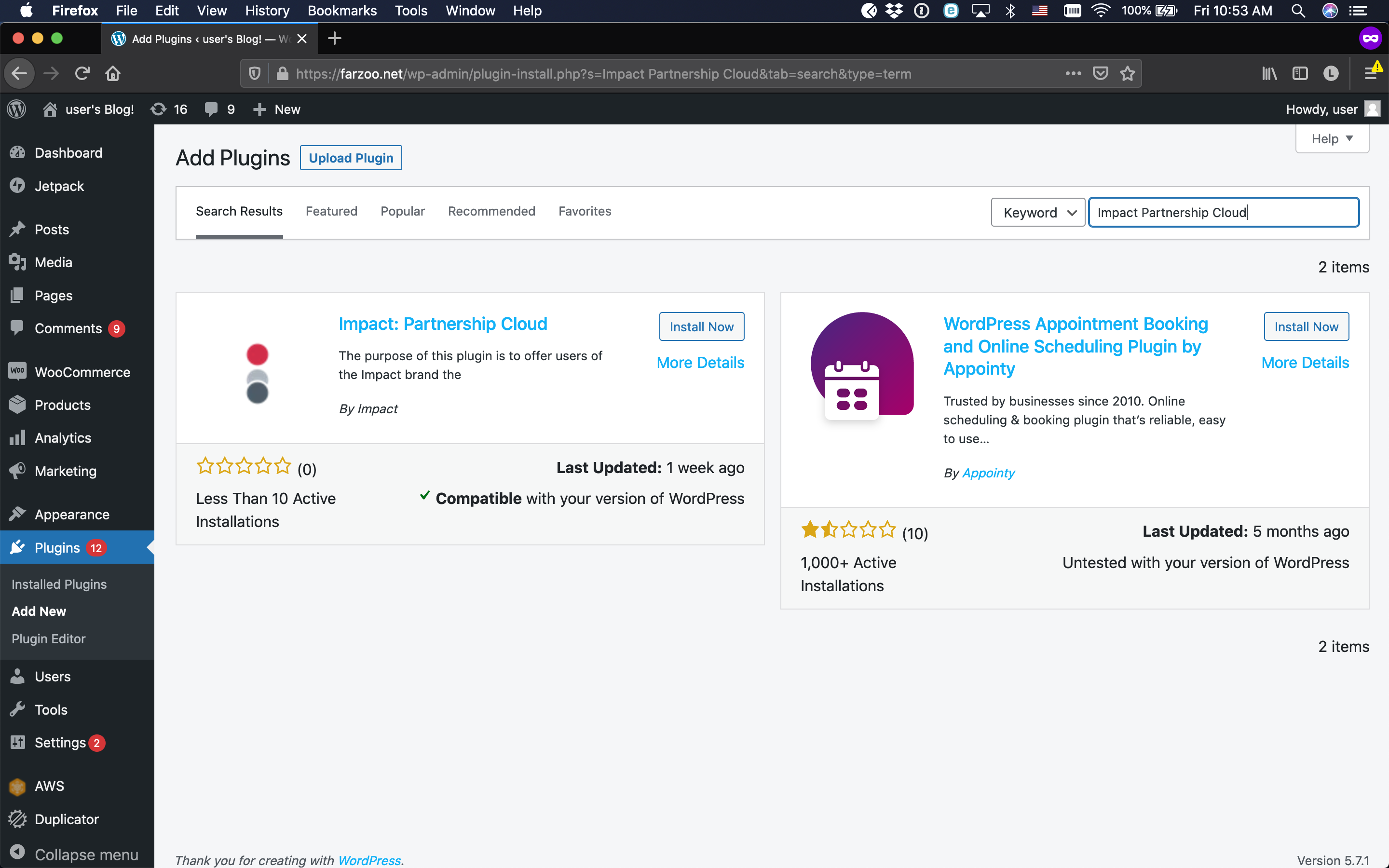
Use the search box in the upper right corner to search for Impact Partnership Cloud. Verify you've found the correct plugin (see the screenshot below) and select Install Now.
-
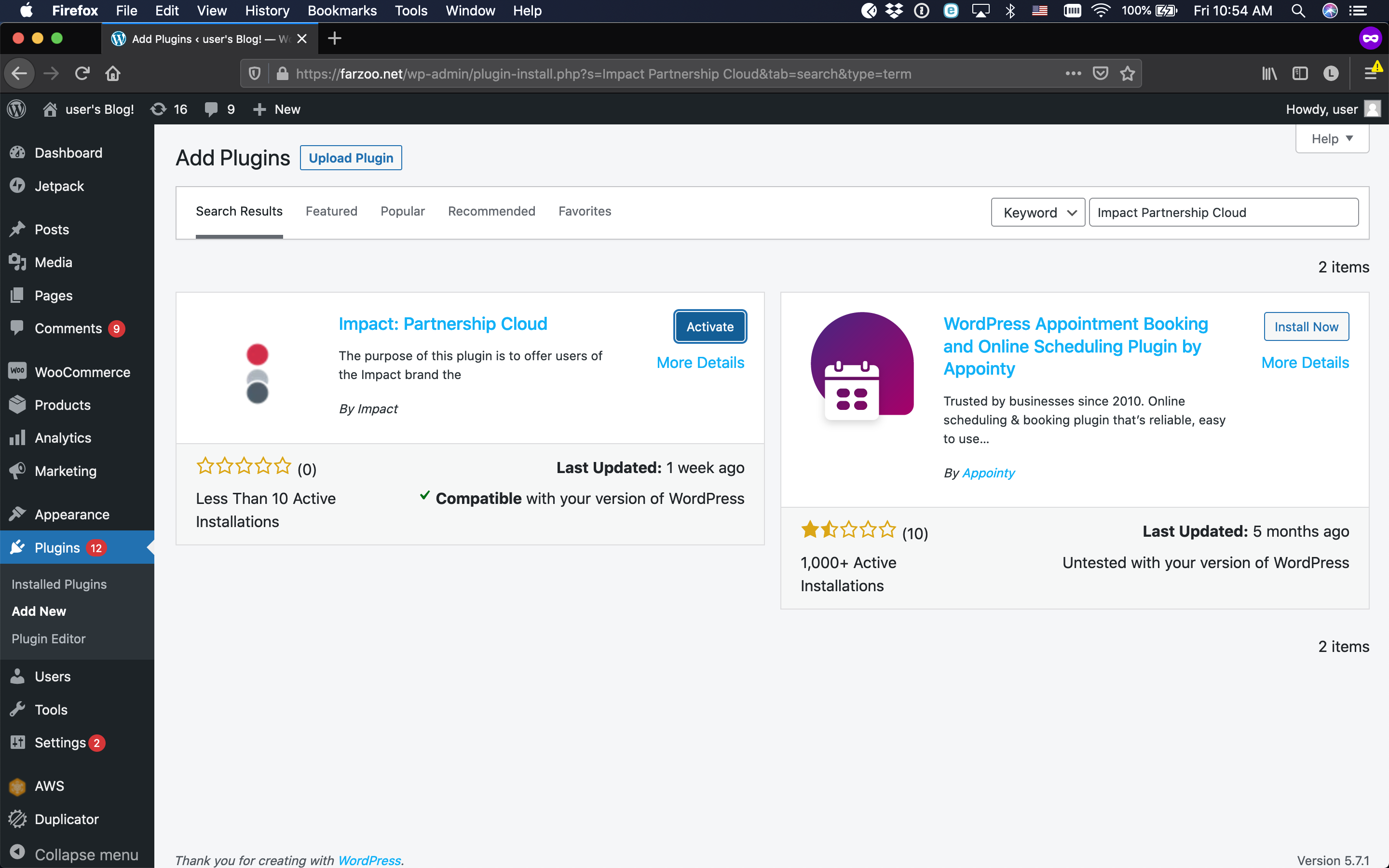
After the plugin installs, select Activate.
-
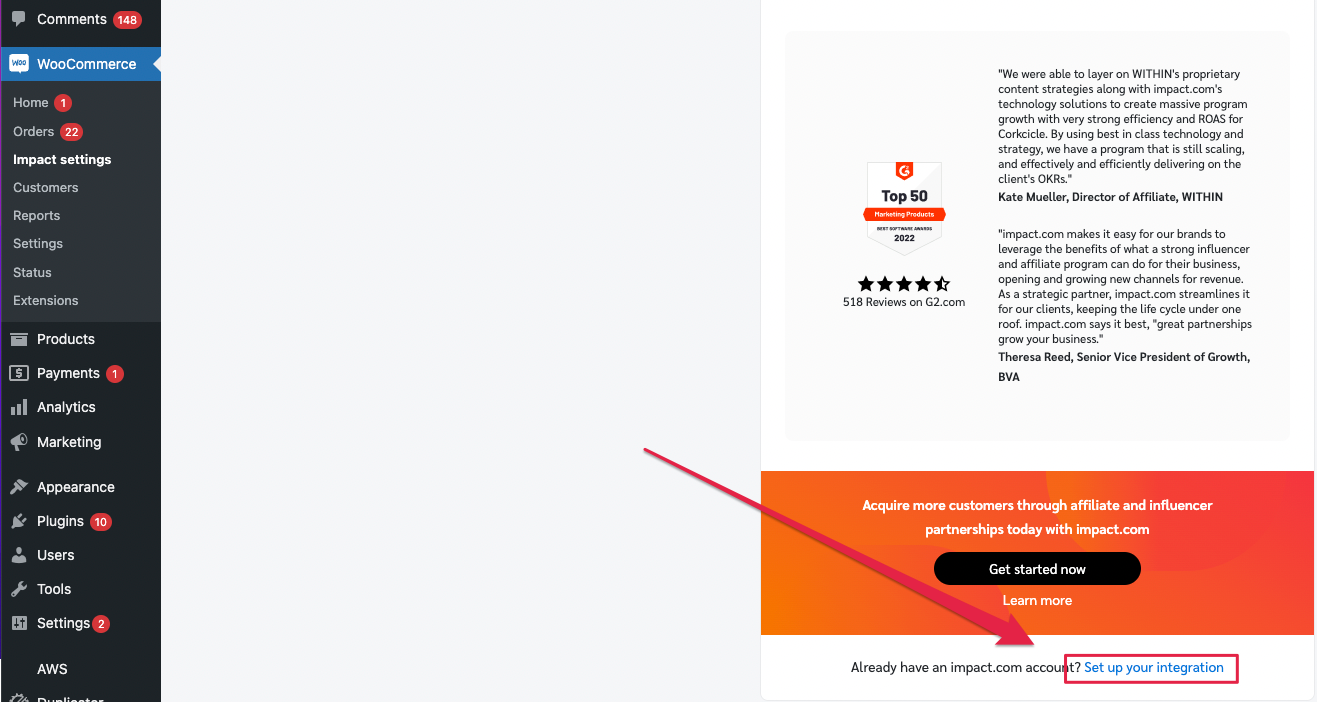
Navigate to the bottom of the landing page to Already have an impact.com account? and select Set up your integration.
-
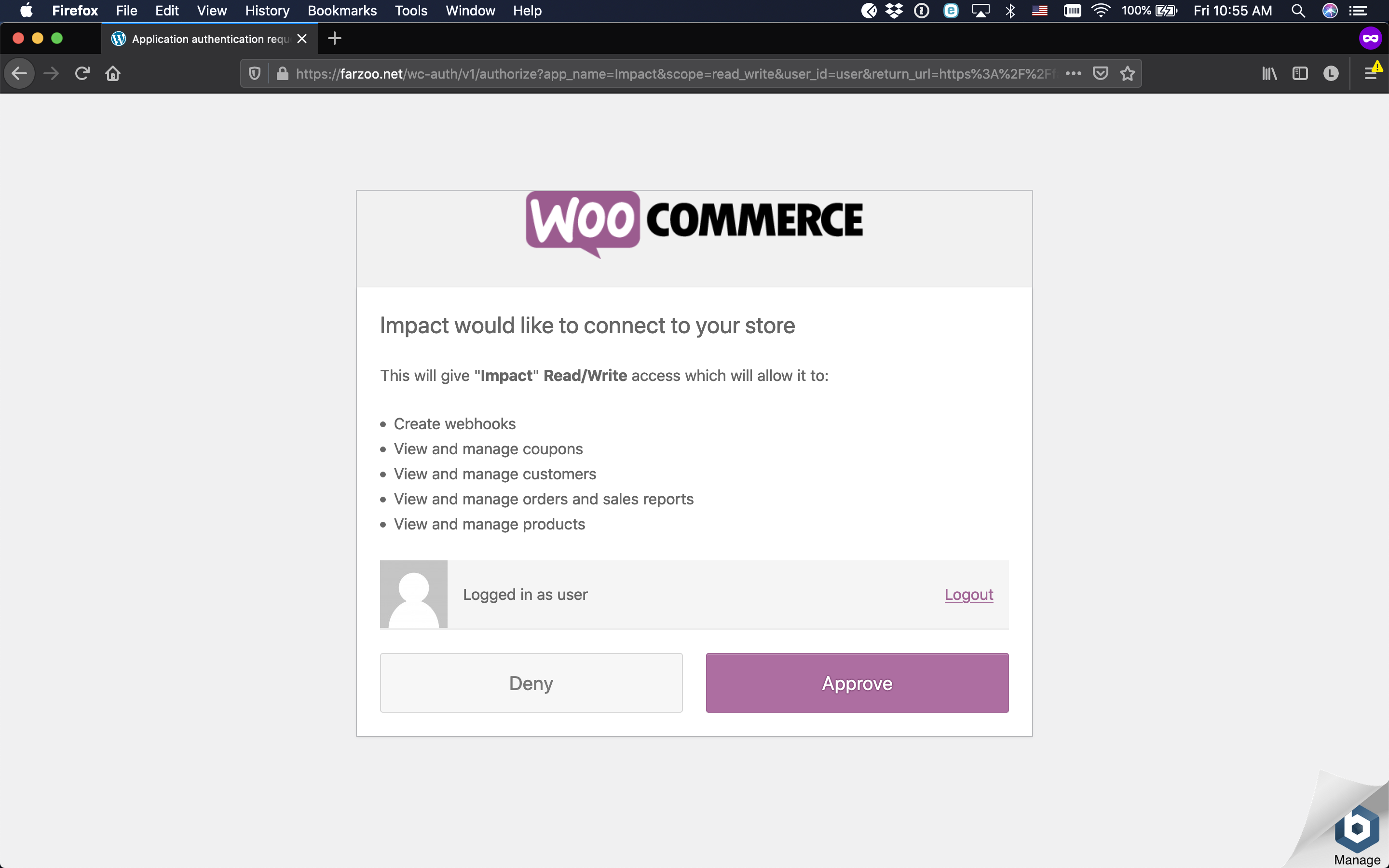
Review the access request from impact.com, then select Approve.
-
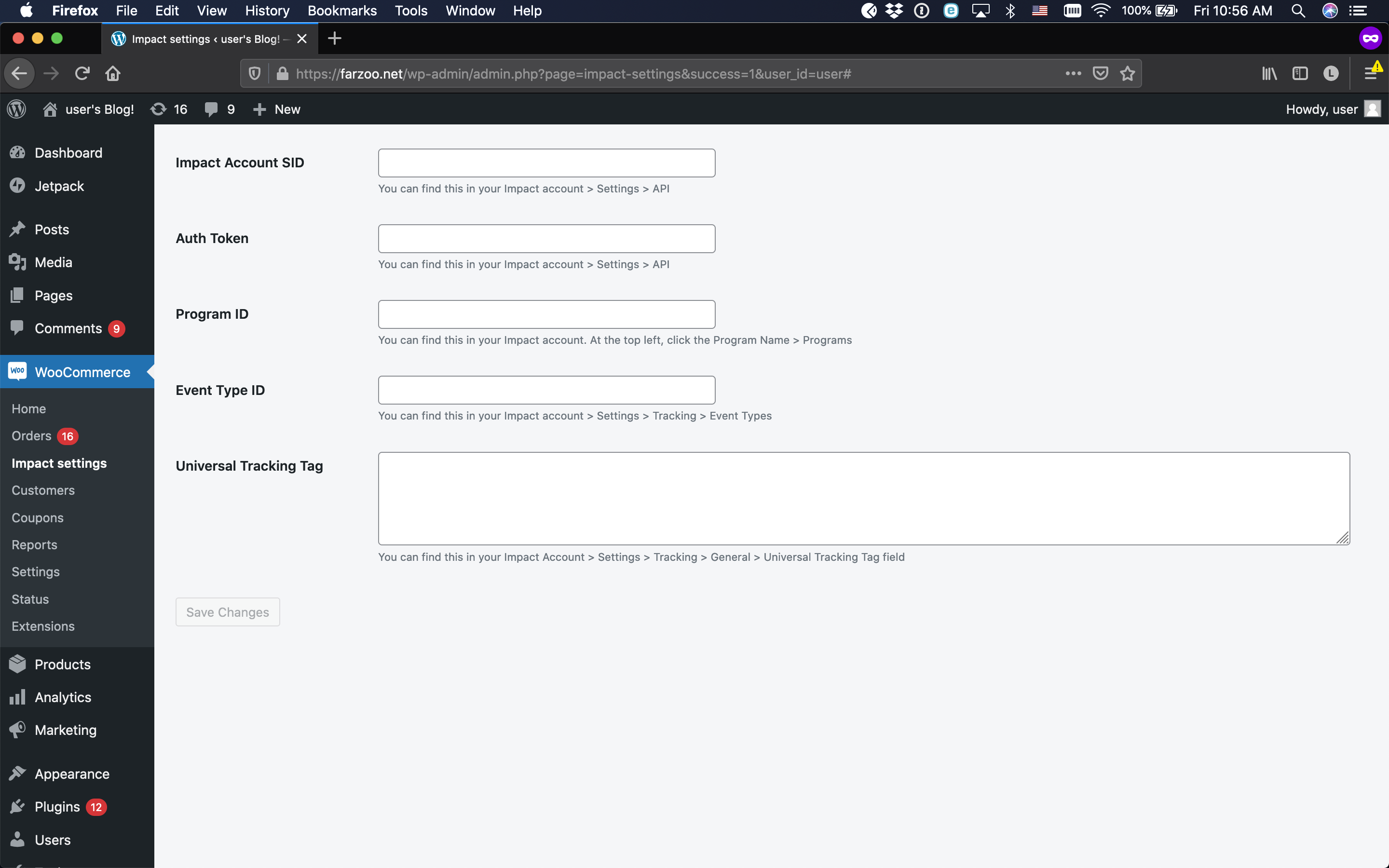
Add your impact.com account information to the fields.
- Select Save. You'll receive confirmation that impact.com has been installed, after which you can begin end-to-end testing.
| Field | Description |
|---|---|
| Impact Account SID * | In the impact.com platform, from the top navigation bar, select [User profile] → Settings → API and copy your Account SID. |
| Auth Token * | In the impact.com platform, from the top navigation bar, select [User profile] → Settings → API and copy your Auth Token. |
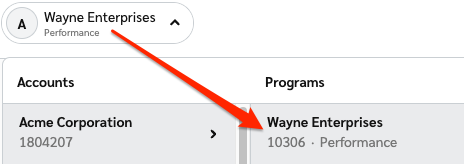
| Program ID * | In the impact.com platform, select your brand name in the top-left corner. Your Program ID is the numerical value under the program name. |
| Sale/Subscription Tracker * | In the impact.com platform, from the top navigation bar, select [User profile] → Settings → Event Types. Copy the number in parenthesis next to the name of the event type. |
| Universal Tracking Tag * | In the impact.com platform, navigate to your UTT and copy the entire unique code snippet. |
End-to-End Testing
End-to-End Testing Instructions
After completing the integration, perform the following tests:
- Test conversion tracking: Make a test purchase through your affiliate links
- Verify data flow: Check that conversion data appears in your impact.com dashboard
- Test refund tracking: Process a test refund and verify it's tracked correctly
- Monitor for 24-48 hours: Ensure consistent data flow between platforms
If you encounter any issues during testing, contact your Customer Success Manager or reach out to support.
Modifications & Reversals
Important!Always make sure to modify and/or reverse orders in WooCommerce first, then check it was modified/reversed in impact.com. Actions you modify or reverse in impact.com will not be sent to WooCommerce.
Delete your impact.com integration
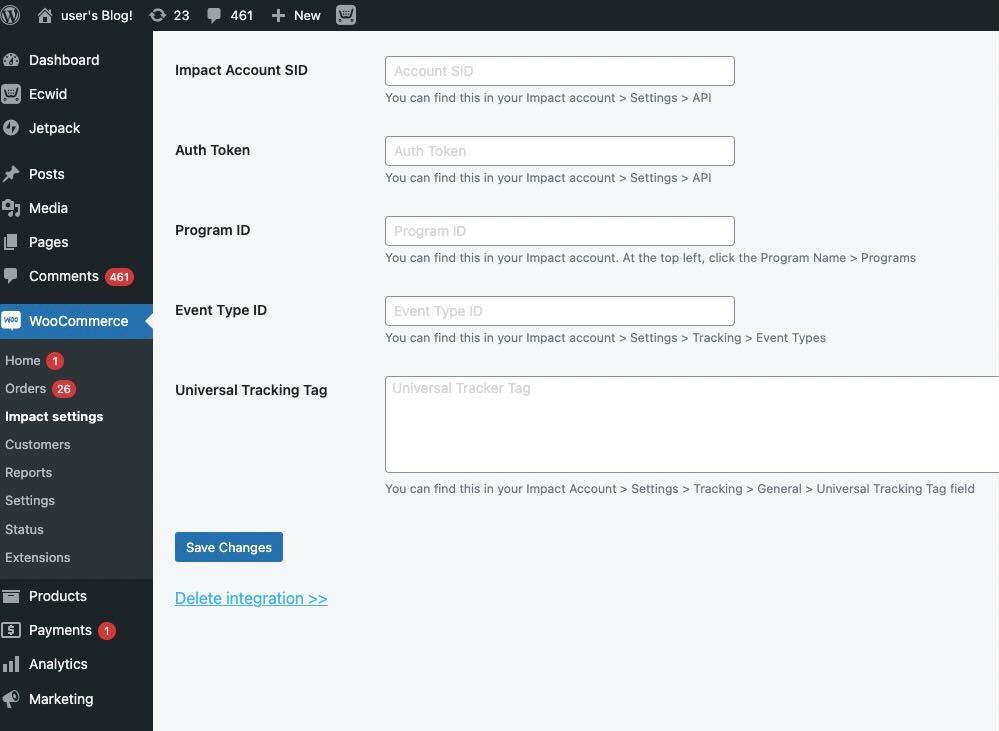
- From your WooCommerce dashboard, select Impact settings.
- From your Impact settings page, select Delete integration at the bottom of the screen.
- To confirm the deletion, check the box and select Delete credentials.
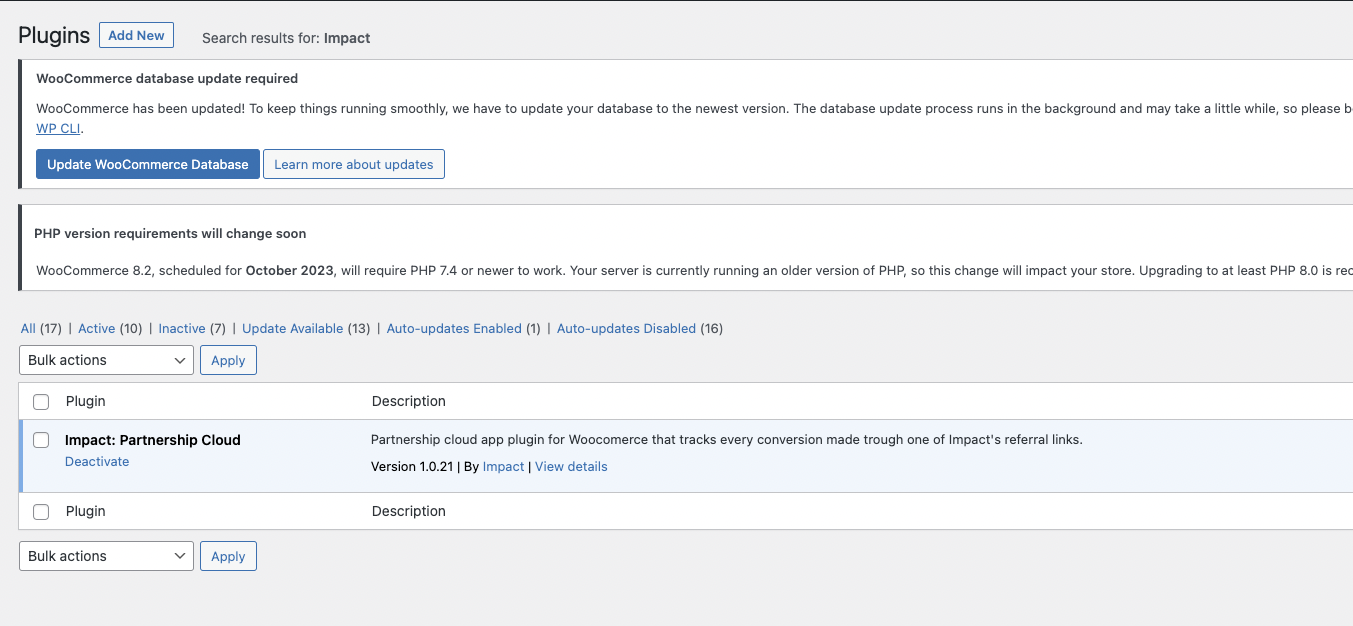
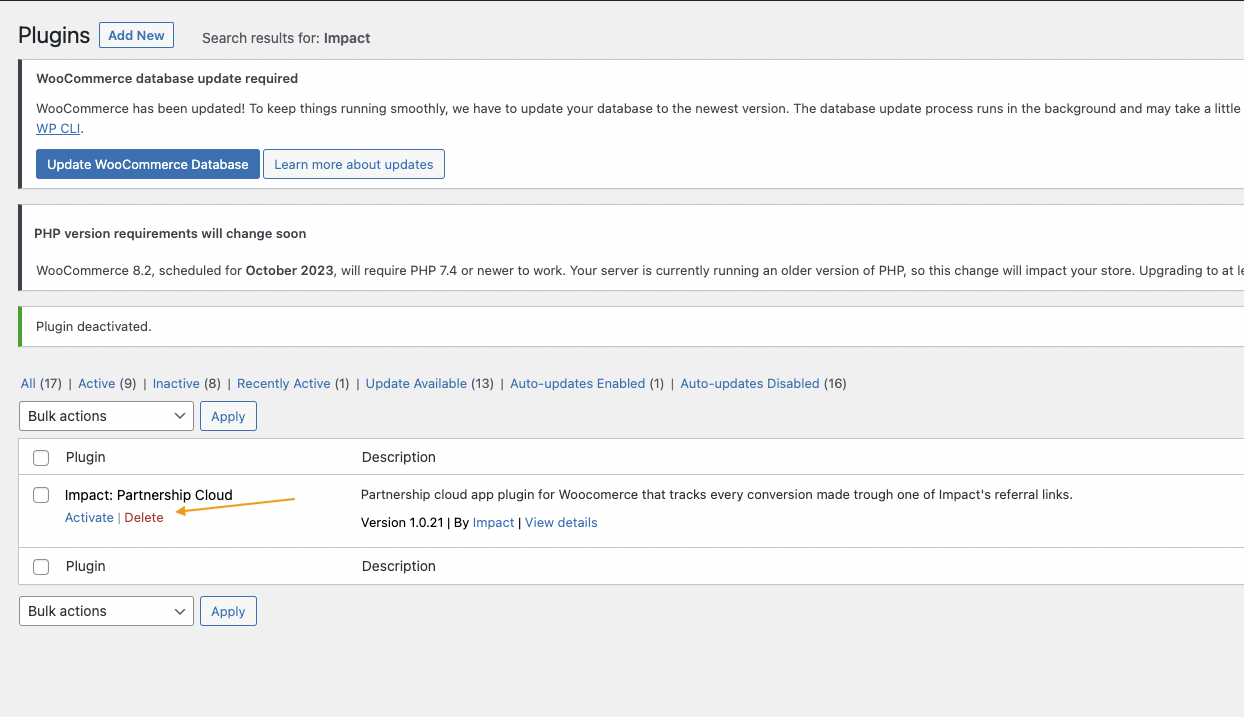
- Go to Plugins → Installed Plugins → search for "Impact" → Deactivate → Delete.
Updated 9 months ago